---
title: "Embedding Forms"
slug: "embedding-forms"
description: "The form builder supports both \"simple\" and \"dynamic\" embeds."
updated: 2026-09-29T20:41:04Z
published: 2026-09-29T20:41:04Z
canonical: "knowledge.technolutions.net/embedding-forms"
stale: true
---
> ## Documentation Index
> Fetch the complete documentation index at: https://knowledge.technolutions.net/llms.txt
> Use this file to discover all available pages before exploring further.
# Embedding Forms
You can embed a Slate [form](/v1/docs/forms-overview) on an external webpage. Embedded forms can collect event registrations, for your request-for-information pages, as a giving form for alumni, and more.
## Embedding a Slate form on a webpage
> [!WARNING]
> 📝 Note
>
> Only one Slate form can be embedded on a single webpage. Use separate pages or link directly to a form if you need to provide access to more than one at a time.
1. Go to **Forms**.
2. Open the form.
3. Select **Edit Form**.
4. Select **Embed Form.**
5. Three tabs available:
- **Simple Embed:** Renders the form on the page.
- **Dynamic Embed:** Passes the hosting page’s query-string parameters into the embedded form.
**QR Code:** Generates a QR code that, when scanned, opens the form. Also provides a short URL for use in social media.
6. Paste the copied HTML, QR code, or short URL on the external webpage where the form should appear.
## Simple and dynamic embedding
Simple and dynamic embed links use `script` tags to add the requested form to the host page. The embedded form can use CSS from the host page, validate fields and addresses, and submit data back to Slate. Neither embed type uses `document.write`.
Both types of embedding present `Loading...` placeholder text in the `div` that renders the form while the website awaits a response from Slate.
### Simple embed
Let’s take a look at an example simple embed code:
```xml
Loading...
```
Here, we see the `div` that renders the form (which begins as the `Loading…` placeholder text), followed by a `script` tag. The `script` asynchronously downloads and executes JavaScript from `src`, the value of which is your form’s URL plus some query string parameters. When the webpage on which the script is embedded receives the JavaScript, it replaces the `Loading…` text in the `div` with the form’s HTML.
Taking a look at the `src` value:
```plaintext
https://slate.edu/register/?id=f9673d93-4906-4da9-9d5e-253d57511266&output=embed&div=form_f9673d93-4906-4da9-9d5e-253d57511266
```
We have a series of query string parameters following the `?` at the end of the URL:
- `id`: The form’s Globally Unique Identifier (GUID) value.
- `output`: The `output` parameter, when provided value `embed`, requests the embedded-form response.
- `div`: The destination `div` on the host page.
You can add your own query string parameters to the `src` URL. When these query strings reference fields on the form, they can **pre-populate the field** with the parameter’s value.
For example, if you wanted to pre-populate the value of an Academic Interest field with `Computer Science`, you could add `sys:field:acainterest=PROGRAM-GUID` as a query string parameter, like so:
```xml
Loading...
```
Where `FORM-GUID` and `PROGRAM-GUID` are the Globally Unique Identifiers for the form and program, respectively.
This might be useful in a specific circumstance, but what if you wanted your form fields to be populated with different values depending on the URL with which the user arrives at the form? That’s where **dynamic embeds** come into play: they let you move beyond hardcoding the query string parameters in the embed code.
### Dynamic embed
Here’s an example dynamic embed code:
```xml
Loading...
```
Let’s explore the contents of the dynamic embed code’s `script` tag:
```javascript
(function () {
const script = document.createElement('script');
// Creates a new `script` element.
script.async = 1;
// Instructs the browser to download the Slate form without blocking the rest of the webpage while the download is underway.
// While the page waits, users see the `Loading...` placeholder.
script.src = 'https://slate.edu/register/?id=FORM-GUID&output=embed&div=form_FORM-GUID' + ((location.search.length > 1) ? '&' + location.search.substring(1) : '');
// Assigns the URL that the newly created script will load. See section on query string parameters below for more detail on how these lines work.
const s = document.getElementsByTagName('script')[0];
// This finds the first `script` element already present in the webpage and uses that element as a known insertion point for the new Slate script.
s.parentNode.insertBefore(script, s);
// Inserts the newly created script immediately before the first existing script.
})(); // Runs, closes the function.
```
### Query string parameters in dynamic embeds
Of particular importance for the dynamic embed is the line that builds the `src` value, which the script then requests from Slate:
```javascript
script.src = 'https://slate.edu/register/?id=FORM-GUID&output=embed&div=form_FORM-GUID' + ((location.search.length > 1) ? '&' + location.search.substring(1) : '');
```
Beside getting the form’s URL, which includes its ID and the ID of the `div` in which it is to be rendered, this is where Slate incorporates into the form’s fields any additional query string parameters passed in with the URL.
The script builds a string out of your form’s URL:
```javascript
'https://slate.edu/register/?id=FORM-GUID&output=embed&div=form_FORM-GUID'
```
Plus the result of a [ternary expression](https://developer.mozilla.org/en-US/docs/Web/JavaScript/Reference/Operators/Conditional_operator):
```javascript
+ ((location.search.length > 1) ? '&' + location.search.substring(1) : '');
```
This expression checks for the existence of any additional text following the URL. It does this by testing the value of `location.search`, which contains the query-string portion of the current external webpage URL, including the opening question mark.
If your page has the URL:
```plaintext
https://admissions.example.edu/request-info?sys:field:program=PROGRAM-GUID
```
`location.search`'s value would be:
```plaintext
?sys:field:program=PROGRAM-GUID
```
If the `location.search.length` property has a length longer than `1`, it knows there’s something after the question mark (`?`). If that’s the case, it appends an ampersand (`&`) followed by the remaining query string from the host page’s URL (the return value of `location.search.substring(1)`). If it doesn’t find any additional text, it adds an empty string `’’` (that is, it doesn’t add anything to the URL).
This is what lets the dynamic embed code incorporate query string parameters into a form response. For example, if a user opens the page hosting the dynamically embedded form with the following query string parameter:
```plaintext
https://admissions.example.edu/request-info?sys:field:program=PROGRAM-GUID
```
The dynamic embed script sends the following request to Slate:
```plaintext
https://example.edu/register/?id=FORM-GUID&output=embed&div=form_FORM-GUID&sys:field:program=PROGRAM-GUID
```
When Slate sends back the `PROGRAM-GUID`, the field represented by the export key `sys:field:program` is populated with that value.
📖 [Prepopulating or Prefilling Forms Using Query String Parameters](/v1/docs/prepopulating-or-prefilling-forms-using-query-string-parameters)
### CSS and embedded forms
Embedded forms and the host webpage can occasionally have conflicting CSS. If the embedded form does not appear as expected, work with whoever maintains the website to adjust the host page's CSS.
## An embedded form shows Forbidden
A Forbidden response can have more than one cause. First, identify when the response appears.
1. Open the form URL from the form overview page. Record whether the form opens directly.
2. Open the page that contains the embedded form. Record whether the error appears when the form loads, when you submit it, or after a redirect.
3. Compare the same form on another approved host page, if one is available. Record the embed method and any changes to the embed code.
4. Record the browser, the time, and the exact message. Ask the website administrator to identify the failed request and any redirect.
A message from a configured [submission condition](/v1/docs/access-and-submission-conditions) can differ from an HTTP 403 response. Check the form settings before you change them. See [Troubleshooting Forms](/docs/troubleshooting-forms) for form conditions and other submission issues.
## QR codes
The QR code contains a short URL for your form. When a person scans the code and opens the link, the form opens in their browser. The person must complete and submit the form to send a form response. Opening the link is not a completed response.
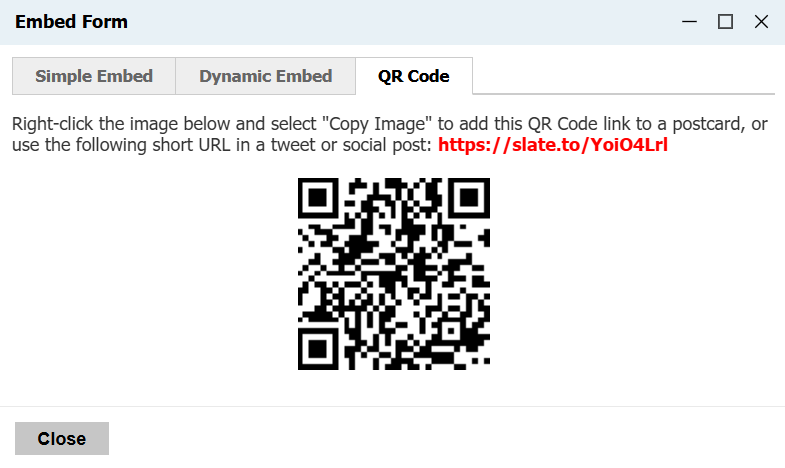
Copy the code and place it anywhere you might expect registrants to scan it with their phones. You can also copy the short URL for social media posts or anywhere character space is at a premium.
### Troubleshoot a QR code
1. If the camera cannot read the code, open the short URL directly. Use a clear, complete copy of the QR image and test the final printed or displayed version.
2. If the short URL does not open the expected form, open the form URL from its overview page. Confirm that you copied the QR code from the intended form and database.
3. If the form opens but the person cannot submit it, record the message shown on the form. Check the form's settings and required questions.
Before distributing the code, open its short URL and confirm the destination. Test a response in an appropriate test environment.