🏔️ Summit 2026 Feature
Preferred Partner Login adds security and convenience to the implementation and service work of Slate Platinum and Gold Preferred Partners.
How it works
Preferred Partner users authenticate through their own Slate database before they use single sign-on (SSO) to access a client database. Only active users with administrative access in the Preferred Partner database can use this login.
Preferred Partners export as a spreadsheet the users they want to configure for Preferred Partner login using the query we provide.
Client institutions import this spreadsheet into their database using the source format we provide. Users can also be configured manually.
🔑 Required permissions
To use Preferred Partner Login, in your Preferred Partner Slate database, you must have:
Multi-factor authentication (MFA) enabled
Step 1 (for Preferred Partners): Exporting users from a Preferred Partner database
We’ve made a query with which you can export users from your Preferred Partner database. Copy this Suitcase ID and paste it in Database → Suitcase Import:
e3bb967f-2ea3-4be9-8e61-fb2f4903a22e:slate-examplesYou can run the query, export the results to an Excel file, and then share the file with the client to import into their Slate database.
📝 Note
This query includes a literal export that formats the user ID. Do not modify this export.
Step 2 (for clients): Importing Preferred Partner users with the Preferred Partner source format
🔔 Important!
We’ll provide a Suitcase ID here pending a future release. Pending that release, you can create Preferred Partner users manually, as covered in the next section. Check What’s New for updates.
We’ve created a source format for Preferred Partner user accounts that lets you automatically process addition, update, and removal of Preferred Partner users from your database. To add this source format to your database, copy this Suitcase ID and paste it in Database → Suitcase Import:
🚧 SUITCASE ID TO BE RELEASED 🚧Adding an individual Preferred Partner user to a client database
In a client database, a Security Administrator can add a user account for a Preferred Partner:
Go to Database → User Permissions.
Select New User.
Configure the following settings:
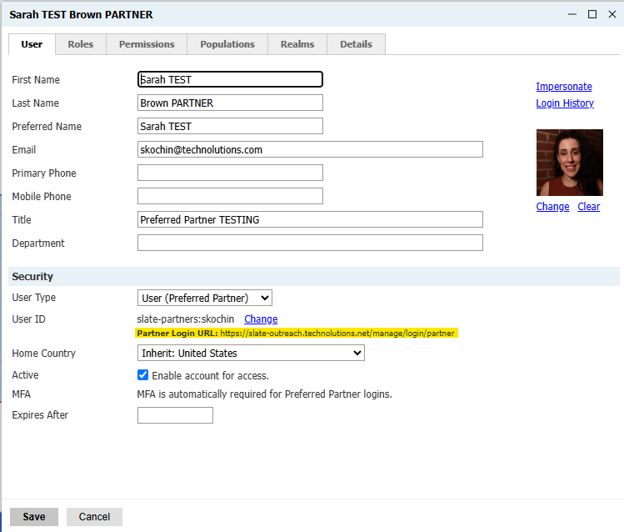
First Name: Enter the user's first name.
Last Name: Enter the user's last name.
Email: Enter the user's email address.
User Type: Select User (Preferred Partner).
User ID: Enter the Preferred Partner database key, a colon, and the user's ID in that database, replacing each placeholder with the corresponding value:
{{preferred_partner_db_key}}:{{preferred_partner_db_userid}}
MFA is automatically required for Preferred Partner logins.
Select Save.
A Partner Login URL appears, which you can provide to the Preferred Partner:
Signing in to a client database
Open the Partner Login URL from the client database.
In Database/Domain, enter your Preferred Partner database key.
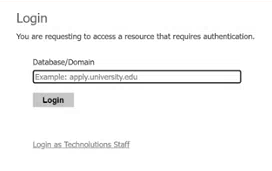
Select Login.
Complete authentication through your Preferred Partner Slate database, including MFA.
💡 Tip
For a shortcut, add a button to a client dashboard with this URL:
/manage/login?cmd=partner_redirect&return_to={{client_db}}